How to Convert PDF to Markdown for AI and LLM Workflows
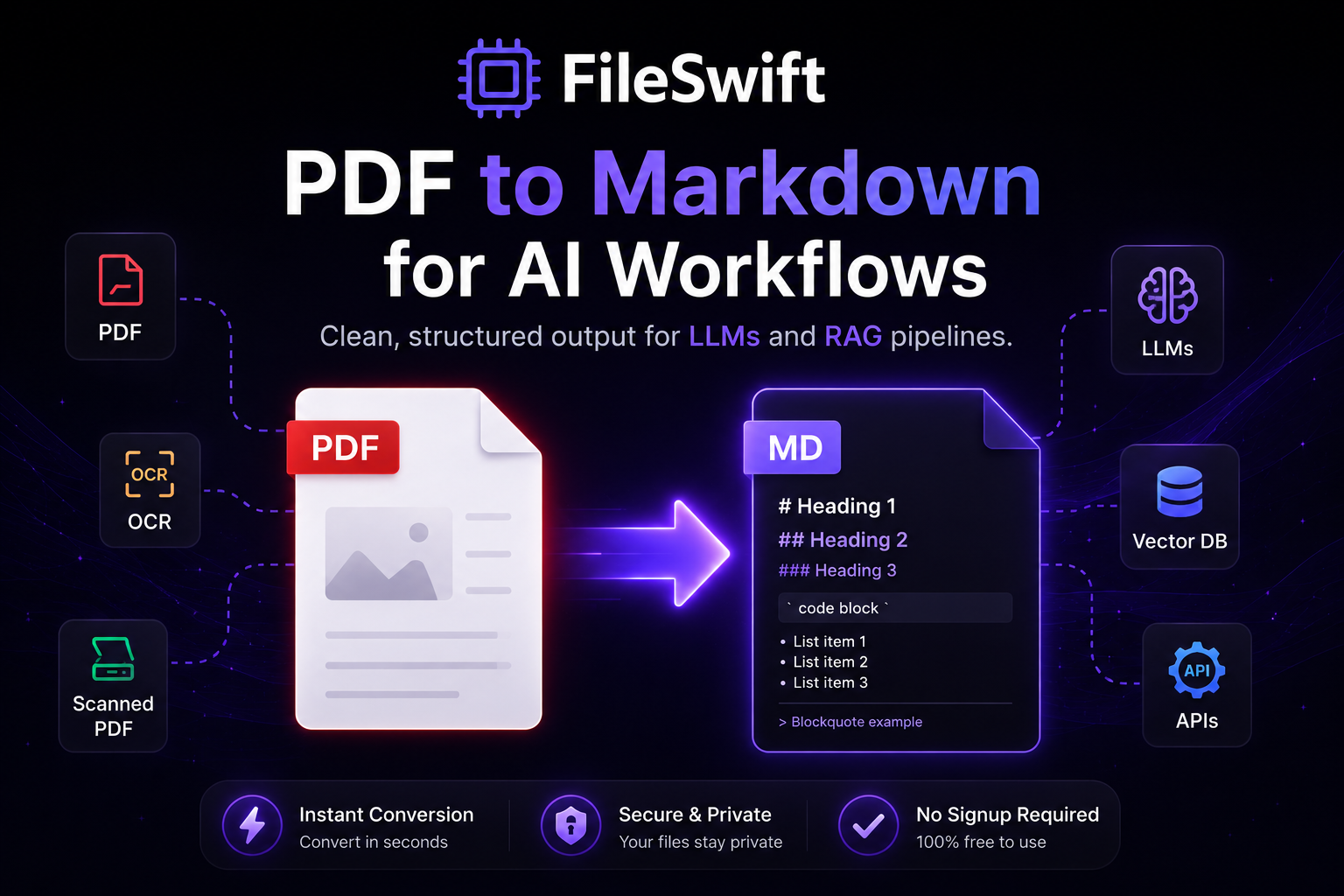
The rapid adoption of Large Language Models (LLMs) and Generative AI has transformed how organizations process documents. Whether building Retrieval-Augmented Generation (RAG) pipelines, creating custom ChatGPT knowledge bases, or fine-tuning models, developers face a persistent hurdle: unstructured document formats.
Portable Document Format (PDF) files are the ubiquitous standard for sharing business documents, reports, academic papers, and invoices. However, PDFs are notoriously difficult for machines to parse cleanly. They are visually oriented, defining coordinates for text rather than logical structure. This is where converting PDFs to Markdown becomes a critical step in modern AI workflows.
In this comprehensive guide, we will explore why Markdown is the ideal format for LLMs, the use cases for PDF to Markdown conversion, and how you can seamlessly implement this into your applications.
The Problem with PDFs in AI Workflows
PDFs were designed in the 1990s to ensure that a document looks exactly the same on any screen and when printed on paper. To achieve this, a PDF file stores text as isolated characters or strings at specific X and Y coordinates on a canvas.
When developers attempt to extract text from a PDF using traditional libraries (like PyPDF2 or pdfminer), the results are often messy:
- Lost Hierarchy: Headings, paragraphs, and lists are stripped of their semantic meaning.
- Broken Tables: Tabular data is often extracted as a jumbled sequence of numbers and words.
- Multi-column Layouts: Reading order is frequently scrambled, reading across columns instead of down them.
- Artifacts: Headers, footers, and page numbers interrupt the flow of text.
For an LLM, feeding this messy, unstructured text degrades the quality of its output. If a RAG pipeline retrieves a chunk of text that combines a table header with a footnote, the model will hallucinate or fail to understand the context.
Why Markdown is the Perfect Language for LLMs
Markdown is a lightweight markup language with plain text formatting syntax. Over the last decade, it has become the lingua franca of developer documentation (thanks to GitHub), note-taking apps (like Notion and Obsidian), and now, Artificial Intelligence.
Here is why LLMs love Markdown:
1. Semantic Structure
Markdown uses simple characters to define hierarchy: # for an H1, ## for an H2, * for bullet points, and > for blockquotes. LLMs are trained heavily on Markdown data (such as GitHub READMEs and StackOverflow answers). They inherently understand this semantic structure, allowing them to grasp the relationship between sections and the overall context of a document.
2. Clean Tables
Tables in Markdown are represented using pipes (|) and hyphens (-).
When an LLM sees a Markdown table, it immediately understands the rows and columns, making it exceptionally good at answering data-extraction queries.
3. High Token Efficiency
Unlike HTML, which is bloated with div tags, classes, and styles, Markdown is extremely concise. This minimizes token usage, saving costs and allowing you to fit more relevant context into the LLM's context window.
4. Code Blocks
Markdown uses triple backticks (```) to denote code blocks. For AI models writing or analyzing code, this clear delineation prevents confusion between instructional text and executable code.
Key Use Cases for PDF to Markdown Conversion
Converting your document repository from PDF to Markdown unlocks several powerful AI capabilities.
1. Building RAG Pipelines
Retrieval-Augmented Generation involves embedding document chunks into a vector database so that an LLM can query them later. If you embed raw PDF text, your chunks will be messy. By converting the PDF to Markdown first, you can use a Markdown-aware text splitter (like those provided by LangChain or LlamaIndex) to split the document intelligently by headers. This ensures that a single chunk contains a complete, logically cohesive section of text.
2. Fine-Tuning Models
When fine-tuning an LLM on proprietary company data (like employee handbooks, technical manuals, or legal contracts), data quality is paramount. Markdown provides a clean, consistent format that helps the model learn the domain knowledge without getting distracted by formatting errors or extraction artifacts.
3. Custom ChatGPT / OpenAI Assistants
If you are uploading files to an OpenAI custom GPT or an Assistant API, providing Markdown files instead of raw PDFs often yields significantly better and faster responses. The Assistant does not have to waste computational effort parsing the PDF visual layout.
4. Importing to Notion and Obsidian
Beyond AI, developers frequently use Markdown to migrate knowledge bases. Converting legacy PDF reports into Markdown allows for a seamless import into modern tools like Notion, Obsidian, or Docusaurus.
How to Convert PDF to Markdown Step-by-Step
Converting PDFs to Markdown requires intelligent layout analysis. The system must recognize where a table starts and ends, identify headings based on font size, and ignore irrelevant page footers.
While you could build a custom pipeline using OCR tools and heuristic scripts, the fastest and most reliable method is to use a dedicated conversion tool.
FileSwift provides a powerful, free, and private conversion engine designed precisely for this use case.
Step 1: Upload your Document Head over to the PDF to Markdown converter on FileSwift. Our interface is intuitive—simply drag and drop your PDF file onto the page. You do not need to sign up for an account, and your files are processed securely.
Step 2: Let the Engine Process FileSwift analyzes the PDF's internal structure. It intelligently detects multi-column layouts, reconstructs tables into Markdown format, and identifies headings to rebuild the semantic hierarchy of the document.
Step 3: Download the Markdown File
Within seconds, your .md file is ready to download. You can open it in any text editor to verify the formatting.
Step 4: Integrate into your Pipeline You can now feed this clean Markdown file directly into your vector database, LangChain scripts, or LLM prompts.
Automating with FileSwift Batch Conversions
If you are building an AI application, you likely have more than just one PDF. You might have thousands of reports, invoices, or manuals. Doing this manually is impractical.
For developers and power users, FileSwift offers Batch Conversion capabilities. You can upload dozens of PDFs at once and convert them all to Markdown in a single pass. This saves hours of manual processing time and ensures your AI pipeline is fed with high-quality, structured data immediately.
Best Practices for AI Document Prep
Even with the best PDF to Markdown conversion, following a few best practices will maximize your AI's performance:
- Review Table Extraction: Complex nested tables in PDFs can be tricky. Always do a spot check on your Markdown tables to ensure the rows and columns align correctly before embedding them into a vector database.
- Chunk by Headers: Use a Markdown text splitter that splits by
##or###. This prevents the text splitter from cutting a paragraph in half. - Add Metadata: Append frontmatter (like we use in this blog post!) to your generated Markdown files to inject author, date, and category metadata. LLMs can use this frontmatter to provide more accurate, filtered answers.
PDF to Markdown vs PDF to Text: What is the Difference?
Many developers reach for PDF to TXT when they need to extract content from documents for AI pipelines. While this works, it discards all structure — headings become plain text, tables become scrambled rows, and the LLM has no way to distinguish a chapter title from a paragraph.
PDF to Markdown preserves that structure:
- Headings become # H1, ## H2, ### H3
- Bold text stays bold
- Lists stay as bullet points
- Tables convert to Markdown table syntax
- Code blocks are wrapped in backticks
For RAG pipelines, this structure is invaluable. When your vector database chunks the document, it can split on heading boundaries rather than arbitrary character counts — meaning each chunk is semantically coherent rather than mid-sentence.
Real-World Use Cases
Research Paper Processing
Academic researchers increasingly use LLMs to synthesise literature. Converting PDF papers to Markdown before feeding them into a RAG system means the AI can correctly identify Abstract, Introduction, Methodology, Results and Conclusion sections — dramatically improving the accuracy of AI-generated summaries.
Internal Knowledge Base Migration
Companies with years of PDF documentation — product manuals, HR policies, technical specs — can convert their entire archive to Markdown and import it into tools like Notion, Confluence, or a custom RAG system. FileSwift's batch converter makes this feasible at scale.
ChatGPT Custom GPT Knowledge Files
OpenAI's Custom GPT feature accepts uploaded documents as a knowledge base. While it accepts PDFs, Markdown files produce significantly better results because the structured headings give the GPT clearer context about document organisation. Converting your PDFs to Markdown first is a simple step that meaningfully improves Custom GPT quality.
Fine-Tuning Dataset Preparation
Teams preparing instruction-tuning datasets often start with PDF textbooks, legal documents, or technical manuals. Converting to Markdown as an intermediate step produces cleaner training data — the structured format makes it easier to programmatically extract question-answer pairs or instruction-response examples.
Frequently Asked Questions
What is the best format to feed PDFs into an LLM?
Markdown is generally the best format for feeding document content into LLMs. Unlike plain text, Markdown preserves structural information (headings, lists, tables) that helps the model understand document organisation. Unlike HTML, it has no noisy tags that waste context window tokens.
Can I convert scanned PDFs to Markdown?
FileSwift works best with digital PDFs that contain real text layers. Scanned PDFs (images of documents) require OCR (Optical Character Recognition) to extract text first. FileSwift is adding OCR support in an upcoming update. For now, digital PDFs convert with high accuracy.
How large a PDF can I convert to Markdown?
Free users can convert PDFs up to 10MB, which covers most standard documents and reports. Pro users (£9/month) get a 100MB limit, suitable for large technical manuals and book-length documents. Business users get 500MB limits for enterprise-scale document processing.
Does PDF to Markdown preserve tables?
Yes — FileSwift attempts to convert PDF tables into standard Markdown table syntax (using pipe characters). The accuracy depends on how the table is structured in the source PDF. Clean, grid-based tables convert with high fidelity. Complex merged-cell tables may require minor manual cleanup.
Is PDF to Markdown conversion free?
Yes. FileSwift provides up to 5 free PDF to Markdown conversions per day with no account required. For unlimited conversions, Pro plans start at £9/month.
What Markdown flavour does FileSwift output?
FileSwift outputs GitHub Flavored Markdown (GFM), which is the most widely supported Markdown dialect. GFM is compatible with GitHub, Notion, Obsidian, VS Code, Ghost, and virtually every modern Markdown editor and platform.
Conclusion
As AI continues to evolve, the demand for clean, structured data is only increasing. The era of dumping messy PDF text into an LLM and hoping for the best is over.
By incorporating PDF to Markdown conversion into your workflow, you guarantee that your language models operate with the highest quality context possible. It improves accuracy, reduces hallucinations, and saves token costs.
Ready to upgrade your AI pipeline? Try converting your first document today using FileSwift's free PDF to Markdown converter.
Ready to convert your files?
Join thousands of users converting PDFs, JSON, images, and more on FileSwift. Fast, free, and private.
Go to Dashboard